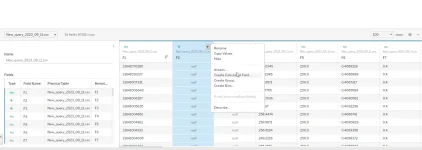

Tableau Desktop'ta yeni bir veri kaynağı bağladığınızda, beklediğiniz sayılar bazen tamamen farklı görünebilir. 1.234,56 yazan bir CSV hücresi Tableau'da 123456 veya 1.234 olarak okunabilir. Bu durumun nedeni sürpriz değildir: Tableau, hem işletim sisteminin yerel ayarlarını hem de workbook'un yerel ayar bayrağını birlikte kullanır. Doğru çıktıyı almak için bu iki katmanı uyumlu hâle getirmek gerekir.
1) Workbook Locale ayarı
Menü çubuğundan File > Workbook Locale yolunu açın. Burada "More" altından Türkçe (Türkiye) veya İngilizce (Amerika Birleşik Devletleri) gibi spesifik bir locale seçebilirsiniz. Bu seçim, sayılar ve tarihler için kullanılacak temel ayraç tipini belirler. Türkçe locale'de ondalık ayracı virgül, binlik ayracı nokta; İngilizce'de tam tersidir.
2) Tarih ayrıştırma davranışı
Bir tarih alanı, kaynak verilerde "13/05/2026" gibi yazıyor ve Tableau bunu null olarak gösteriyorsa, ya kaynak metni dize olarak okunmuş ya da locale ABD olarak ayarlanmıştır. Çözüm iki yönlüdür: locale'i değiştirin veya alanı sağ tıklayıp Change Data Type > Date sonra DATEPARSE("dd/MM/yyyy", [Tarih]) formülünü kullanın. DATEPARSE belirli bir biçimi zorlar ve locale'den bağımsız çalışır.
3) Sayısal alanlar
Eğer CSV dosyası Türkçe biçimlendirmeyle gelmişse ve Tableau alanı dize gibi yorumluyorsa, doğru sıra şudur:
- Alanı sağ tıkla > Change Data Type > Number (decimal).
- Hâlâ null geliyorsa, hesaplanmış alan oluşturun: FLOAT(REPLACE(REPLACE([Tutar], ".", ""), ",", ".")) formülü Türkçe biçimi POSIX biçimine dönüştürür.
- Tek seferde her satır için uygulanır ve performans kaygısı yaratmaz.
4) Format menüsüyle gösterimi ayarlama
Veri doğru okundu ama gösterilirken hâlâ farklı sembol kullanıyor olabilir. Sağ tıkla > Format > Pane > Numbers altından "Custom" seçeneğine geçip #.##0,00 gibi maske yazabilirsiniz. Türkçe locale ile bu maske doğrudan doğruya beklenen biçimi üretir.
5) İşletim sistemi locale'i
Tableau Desktop, açılışta işletim sisteminin bölge ayarlarını okur. Windows'ta Settings > Time & Language > Region, macOS'ta System Settings > Language & Region altında doğru ülkeyi seçin. Bir kez değişiklik yaptıktan sonra Tableau'yu kapatıp yeniden açın.
6) Tableau Server ve Tableau Cloud farkı
Yayınladığınız workbook'un locale ayarı, görüntüleyenin tarayıcı ayarına değil, kaydedilen workbook locale'ine göre çalışır. Bu nedenle Türkçe kullanıcılar için yayınlanacak panellerde "More > Turkish (Turkey)" seçimini kaydetmeden yayınlamayın.
7) Yaygın hatalar
- Filtre alanında değer geliyor ama görselde gözükmüyor: sayısal alan dize olarak kalmış; veri tipi değişimi yapın.
- Excel kaynağında ondalık beklenmedik: hücre biçimi metin; kaynakta düzeltmek daha kalıcıdır.
- Türkçe locale ile İngilizce maske birleşince çift virgül problemleri yaşanır; maskeyi locale ile uyumlu yazın.
Doğru locale seçimi ile veri kaynağı bağlandığında Tableau hem ondalıkları hem de tarihleri eksiksiz okur; yayınlanan dashboardlar Türkçe izleyicilerde kuruşlu, virgüllü, gün/ay/yıl biçiminde görünür.
Tableau Desktop reads two different settings when it formats numbers and dates — your operating system locale and the workbook locale. When those two get out of sync, a perfectly valid CSV value like 1.234,56 may render as 123456 or 1.234 depending on which side wins. Setting up separators correctly is a one-time exercise that saves hours of confused QA.
1) The Workbook Locale switch
Open File > Workbook Locale and choose "More" to pick a specific locale such as Turkish (Turkey) or English (United States). The selected locale dictates the decimal mark and the thousands separator for the rest of the workbook. Turkish locale uses a comma for decimals and a period for thousands; English does the opposite. Save this choice before you publish; viewers don't override it.
2) Date parsing behaviour
If your source data writes a date as 13/05/2026 and Tableau treats it as null, either the field is being interpreted as a string or the locale is set to US English (which expects MM/DD/YYYY). The robust fix is the DATEPARSE("dd/MM/yyyy", [Date]) calculation — it forces the pattern explicitly and works regardless of locale. After parsing, the new field is a true date and supports filters, hierarchies and continuous axes.
3) Numeric fields
If a Turkish-formatted CSV comes in and Tableau treats the field as text, the path is:
- Right-click > Change Data Type > Number (decimal).
- If values still resolve as null, create a calculation: FLOAT(REPLACE(REPLACE([Amount], ".", ""), ",", ".")) — this normalises Turkish formatting to POSIX before the cast.
- Apply once and Tableau caches the conversion; there is no per-row performance cost.
4) Format menu for display
The underlying value can be correct yet display incorrectly. Right-click the measure > Format > Pane > Numbers > Custom and enter a mask like #.##0,00. Together with the Turkish workbook locale, this gives the standard Turkish presentation in tooltips, axis labels and table headers.
5) OS-level locale
Tableau Desktop reads the OS region at launch. On Windows, Settings > Time & Language > Region and on macOS System Settings > Language & Region is where the underlying setting lives. Change it, then restart Tableau so the new locale is picked up.
6) Tableau Server / Cloud
Published workbooks honour the saved workbook locale, not the viewer's browser locale. For a Turkish audience, save the workbook with Turkish (Turkey) selected before publishing. If you have a mixed audience, build two duplicate workbooks tagged appropriately rather than trying to switch at view time.
7) Common pitfalls
- A value passes filters but doesn't appear in the chart — the field is still text, change the data type.
- Decimal points come from Excel but Tableau treats them as thousands — the source cell format is "text", fix it at source for permanence.
- Mixing a Turkish locale with an English numeric mask produces double-comma artefacts — keep the mask consistent with the locale.
With locale and parsing aligned, Tableau reads decimals and dates faithfully, and published dashboards render with the expected separators for Turkish viewers without further intervention.