

Bu hata, genellikle yüklemeye çalıştığınız dosyanın bir veya daha fazla PHP ya da sunucu sınırını aştığı anlamına gelir. XenForo'da çözmek için hem PHP yapılandırmanızı hem de (gerekiyorsa) XenForo ayarlarınızı düzenlemeniz gerekir. Adımlar aşağıdadır.
1. PHP Sınırlarını Artırın
Hosting kurulumunuza bağlı olarak PHP yapılandırmasını (php.ini, user.ini veya .htaccess) düzenleyin:- upload_max_filesize: Yüklemek istediğiniz dosya boyutundan daha yüksek bir değere ayarlayın (örneğin 128M).
- post_max_size: upload_max_filesize'dan büyük veya eşit olmalıdır. Örneğin 128M veya 256M.
- memory_limit: Yüklemeyi kaldıracak kadar yüksek olmalı; örneğin 256M.
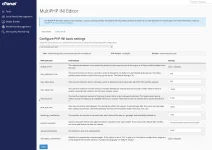
php.ini örneği:
Code:
upload_max_filesize = 128M
post_max_size = 256M
memory_limit = 256M
Eğer php.ini'yi doğrudan düzenleyemiyorsanız .htaccess veya user.ini dosyasıyla ayarlayabilirsiniz:
Code:
php_value upload_max_filesize 128M
php_value post_max_size 256M
php_value memory_limit 256M
Değişiklikleri yaptıktan sonra gerekiyorsa web sunucunuzu veya PHP süreç yöneticisini (PHP-FPM gibi) yeniden başlatmayı unutmayın.
2. XenForo Ayarlarını Düzenleyin
XenForo Admin Control Panel'e giriş yapın ve şunları kontrol edin:
- Attachment Settings: Options → Attachment Settings altında, ek dosyalar için "Maximum file size" değerinin az önce belirlediğiniz PHP sınırlarını aşmadığından emin olun.
- Forum Settings: Bazı forumlar avatarlar veya medya gibi belirli içerik türleri için ayrı sınırlar tanımlamanıza izin verir. Bu sınırların PHP ayarlarınızla uyumlu olduğundan emin olun.
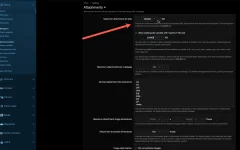
3. Doğrulayın ve Test Edin
- Değişiklikleri doğrulayın: phpinfo(); çağıran basit bir PHP betiği oluşturun ve yeni sınırların aktif olduğundan emin olun.
- Yükleme testi: XenForo'da dosyayı yeniden yüklemeyi deneyin. Hata devam ediyorsa hosting sağlayıcınızın veya bir ters proxy'nin uyguladığı ek sınırlamaları kontrol edin.
4. Hosting Ortamı Notları
- Paylaşımlı hosting: Paylaşımlı bir hostingde iseniz, sağlayıcı tarafından konulmuş kısıtlamalar olabilir. Bu durumda sınırların artırılıp artırılamayacağını öğrenmek için hosting desteğiyle iletişime geçin.
- Sunucu yeniden başlatma: Bazı yapılandırma değişiklikleri etkin olmak için web sunucusunun veya PHP süreç yöneticisinin yeniden başlatılmasını gerektirir.
PHP yükleme ve post sınırlarını artırıp XenForo ayarlarının bu değerlerle uyumlu olduğundan emin olduğunuzda "The uploaded file is too large for the server to process" hatası çözülmüş olacaktır.
This error usually means that the file you're trying to upload exceeds one or more PHP or server limits. To resolve it in XenForo, you'll want to adjust both your PHP configuration and (if applicable) XenForo settings. Here are the steps:
1. Increase PHP Limits
Edit your PHP configuration (php.ini, user.ini, or .htaccess, depending on your hosting setup):- upload_max_filesize: Increase this to a value higher than the file size you want to upload (for example, 128M).
- post_max_size: This must be larger than or equal to upload_max_filesize. For example, set it to 128M or 256M.
- memory_limit: Ensure this value is high enough to handle the upload, e.g., 256M.
Example (in php.ini):
Code:
upload_max_filesize = 128M
post_max_size = 256M
memory_limit = 256M
If you can't edit php.ini directly, you might be able to set these in a .htaccess or user.ini file:
Code:
php_value upload_max_filesize 128M
php_value post_max_size 256M
php_value memory_limit 256M
After making these changes, be sure to restart your web server or PHP process manager (like PHP-FPM) if necessary.
2. Adjust XenForo Settings
Log in to the XenForo Admin Control Panel and check:
- Attachment Settings: Under Options → Attachment Settings, make sure that the "Maximum file size" for attachments does not exceed the PHP limits you just set.
- Forum Settings: Some forums also allow you to set limits for individual content types (like avatars or media). Ensure those limits align with your PHP settings.
3. Verify and Test
- Verify the changes: Create a simple PHP script with phpinfo(); to check that your new limits are active.
- Test uploading: Try uploading your file again in XenForo. If the error persists, double-check that no additional limits (such as those imposed by your hosting provider or a reverse proxy) are interfering.
4. Hosting Environment Considerations
- Shared hosting: If you're on shared hosting, you might have restrictions imposed by your provider. In that case, contact your hosting support to see if they can increase these limits.
- Server restart: Sometimes changes in configuration require a restart of the web server or PHP process manager to take effect.
By increasing the PHP upload and post limits and ensuring that XenForo's settings are compatible with those values, you should be able to resolve the error "The uploaded file is too large for the server to process."


